Settings
ReferenceOne section per block in Settings: what it does, how to use it, and what happens when you turn it off.
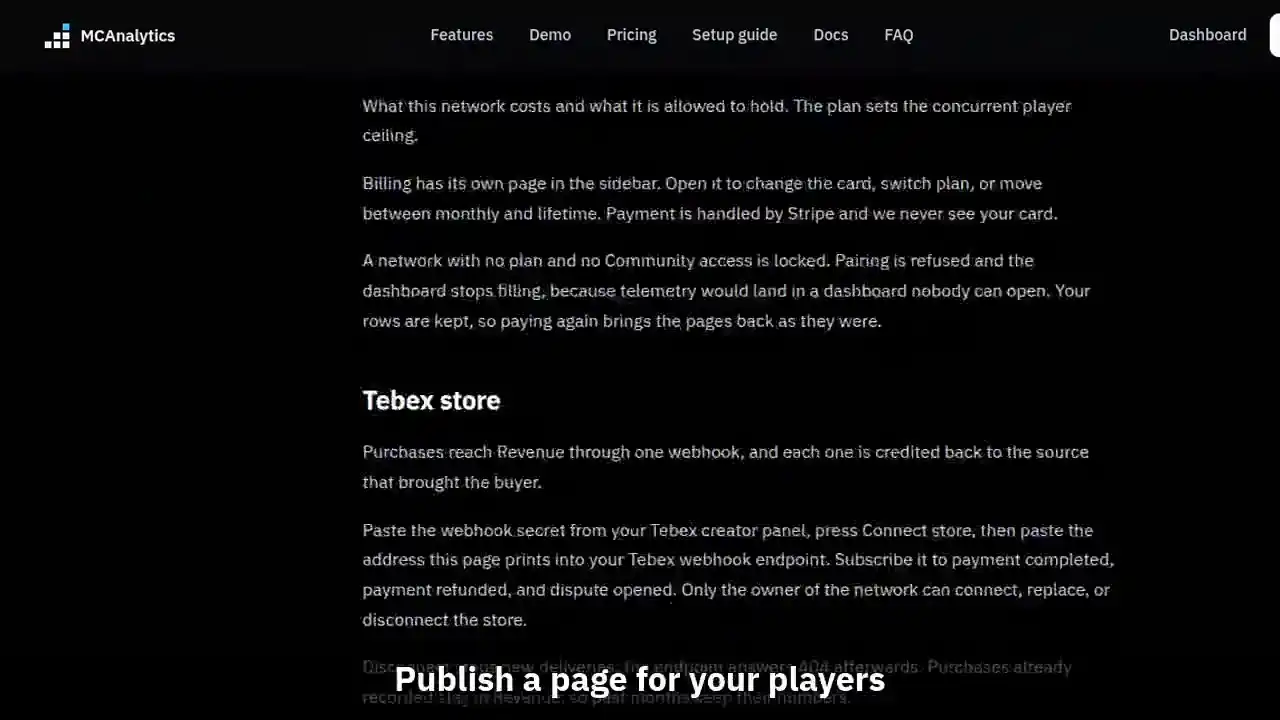
The clip shows, in order:
- Settings has one block per subject.
- Add a server and pair it.
- Who can open this network.
- Publish a page for your players.
- Scoped keys, shown once.
- Off by default, on for Network and up.
- Export everything as one JSON file.
Settings is where a network is put together. It has one page per subject, listed under Settings in the sidebar: Servers, Network, Join addresses, Team, Integrations, Public status page, Data and privacy, and Danger zone. Each section below matches one block on those pages, and the Docs link at the top right of a block opens this article at its section.
#Servers
Every server that has redeemed a pairing code on this network. A row carries the name you gave it, the platform it runs, and whether a heartbeat arrived recently.
Rows update live. The page holds one open connection to MCAnalytics, so a pairing, a heartbeat, a rename, and a removal all land in the table within a second of happening. Nothing here waits for a reload, and a tab that lost its connection re-reads the rows the moment it is back.
Press Add a server to open the pairing form. Name the server, pick Velocity for a proxy or Paper for a backend, and press Get pairing code. Run the command it prints in that server console. The row turns to Reporting on its own, with no reload and no restart.
A code shows once and works for 10 minutes. While one is open, this block says which server it is for and counts down the time it has left, even after a reload. The code itself is never shown again, so if you lost it, press New code beside that line. A new code cancels the old one.
Rename changes the label only. The connector keeps its credential and keeps reporting, and every other page follows the new name.
Re-pair issues a fresh code for the same server record. Use it when you move a server to a new machine or a new host. The old credential stops working the moment the new code is redeemed, so the old machine goes quiet by itself.
Remove revokes the credential and deletes the row at once, so that server can no longer send anything. The sessions, heartbeats, and confirmed bans it already sent stay in your numbers, so removing a server never rewrites your history. To bring it back, add it again and pair it.
#Main domain and join addresses
A player is credited to the address they typed on their first join, for life. Every source number on Growth is built on that.
Main domain is the address most players type. Set it in Network and domain, or press Make primary on a row. Both do the same thing.
To split traffic by creator or campaign, make one DNS name per source pointing at the same proxy IP, with an A or a CNAME record, then label it here. If players reach you through an SRV record, give each source its own SRV target, because the client sends the target name and not the name the player typed. Addresses also appear on their own after the first join, so there is nothing to register in advance.
Remove takes an address off this list. Past sessions and the players already credited to it keep their rows, so nothing you have measured changes. The label stops being shown, and a later join on that address registers it again as a fresh unlabeled row.
#Team
Who can open this network, and what they may do. An owner may do everything, including delete the network. An admin may change settings, pair servers, and invite people. A viewer may read every page and change nothing.
Invite by email. The invitation stays pending until it is accepted, and it expires, so an unanswered invite grants nothing.
Removing a member or revoking an invitation ends that access on the next request. No data goes with them, because the data comes from your servers rather than from a person.
#Billing
What this network costs and what it is allowed to hold. The plan sets the concurrent player ceiling.
Billing has its own page in the sidebar. Open it to change the card, switch plan, or move between monthly and lifetime. Payment is handled by Stripe and we never see your card.
A network with no plan and no Community access is locked. Pairing is refused and the dashboard stops filling, because telemetry would land in a dashboard nobody can open. Your rows are kept, so paying again brings the pages back as they were.
#Stores
Every store you sell through, each with its own webhook address and its own secret. Tebex, CraftingStore, and your own PayPal or Stripe account can sit side by side, and a network can connect more than one Tebex store. Revenue adds them all together.
Press Add store, pick the provider and give it a name, such as the region it sells for. The store gets its webhook address at once. Add that address on the store side, then paste the secret the store shows you and press Save secret. Each store row shows its steps, its address and when it last spoke. Only the owner of the network can add, change, or remove a store.
A store waits for its first event until a signed delivery arrives. If a delivery fails the signature check, the row says so, which is almost always a secret pasted from the wrong place.
Remove stops new deliveries: the address answers 401 afterwards and the secret is wiped. Purchases already recorded stay in Revenue under the store name, so past months keep their numbers.
#Public status page
A page your players can open without an account. It lives at a fixed address built from your network slug, and it shows only what you switch on here.
Publish the page, then choose whether it shows the live player count and the per server state. Give it a title if you want something other than your network name. There are no player names, no join addresses, and no revenue on it, ever.
There is also a badge you can embed in a forum post or a README. It reads from the same switches, so a row you hide here is hidden there too.
Switching a row off hides it on the next load. Switching the page off makes the address answer 404 and stops the badge rendering. Nothing is deleted, so turning it back on brings the same page back.
#API keys
Keys let your own code read this network's numbers through the network API, export rows, or send custom events. A key is scoped, so a read only key cannot write.
The read scopes (Overview, Players, Revenue, Health) are part of the Unlimited plan. The Export and Send custom events scopes come with Network and up. Below Network this block is locked and shows a link to Billing. A key keeps its place if the plan ends, but it answers 403 until the plan it needs is live again.
Create a key and copy it once. We store only a hash, so the key can never be shown again. Last used tells you whether anything is still calling with it.
Revoke kills a key on its next request. The row stays in the table marked revoked, so a later audit still shows the key existed and when it stopped.
#Webhooks
A webhook pushes events out of MCAnalytics to an address you own, so your own service hears about something the moment it happens.
Outgoing webhooks are part of the Unlimited plan. On any other plan this block is locked and nothing is sent. Endpoints you already added are kept, and start delivering again when Unlimited is live.
Add the address, pick the events, then press Test to prove the endpoint answers. The table shows the last delivery, the last status code, and a failure count.
Delete removes the endpoint and stops everything queued for it. Events already recorded in MCAnalytics are untouched, because a webhook is a copy going out and not the record itself.
#Lag profiling
Off by default. Switched on, a Paper server that stays under 18 TPS or over 50 ms per tick for 30 seconds is recorded as a lag event, and the connector asks Spark for a profile of it.
Spark uploads each report to spark.lucko.me as a link that anyone who has it can open. A report lists your plugins and some config. MCAnalytics stores the link and the lag numbers, never the report itself.
It needs Network or Unlimited. On Starter and Community the switch is locked. The switch reaches a running server on its next heartbeat, so no restart is needed, and switching off stops new profiles from the next heartbeat. Links already saved stay in Lag events.
#Alerts
Alerts tell you when something on the network needs a look: a server that was shut down, TPS under 15 on three checks in a row, no heartbeat from any server for 10 minutes, joins in the last hour under half of the same hour last week, and a spike in confirmed bans.
A shutdown is posted once, about a minute after the server stops, and only when its connector reports it. Nothing is posted when the server starts again, and a server that only misses a few heartbeats posts nothing. The other alerts send a second message when they clear.
Webhooks of your own also receive server.offline when a server stops reporting for 3 minutes, and server.online when it is back.
They post in the MCAnalytics Discord for networks linked to your account. Sign in with Discord once to link it, then join the server to receive them. To receive the same alerts on your own service, add a webhook below.
Turning an alert off stops the message only. The state it watches is still measured and still shown on Health and Overview.
Discord alerts post into a channel of your own, on every plan. Paste a channel webhook URL in Integrations, press Send test, and pick the alerts: a new purchase, a join address that stops bringing players back, lag, the player cap, and a daily summary. Retention Autopilot posts to the same webhook. The log under it shows the last 20 messages and whether each one landed.
#Chat and command text
Off by default. While it is off the connector sends a length bucket for a chat message and the label of a command, so nothing a player typed leaves your server.
Turn it on and the connector sends the message and the full command line, each capped at 256 characters. The switch reaches a running server on its next heartbeat, so no restart is needed.
Some arguments are never sent, switch or no switch. The connector drops them for the login family and the private message family: login, l, register, reg, changepassword, changepass, cpw, unregister, 2fa, totp, email, password, pass, msg, tell, w, whisper, r, reply, pm, and mail. That list is compiled in and cannot be turned off.
Text is erased after 30 days. The event it belonged to stays: its kind, its time, its command label, and its length bucket are kept for as long as the session is, so no count on any page changes.
#Data and privacy
Everything this network holds, and how long it holds it. The owner can export the lot as one JSON file: servers, sources, players, sessions, purchases, members, and billing state.
Secrets are not in the export. Network secrets, token hashes, pairing code digests, and the store webhook secret are authentication material, not your data.
On Network and up, an owner or admin can also download one CSV for a range of days: players, sessions, purchases, votes, or custom events. It holds no IP data and nothing a player typed, and one file holds up to 100,000 rows.
Retention runs on its own. The cleanup job clears the keyed IP hash from sessions past the retention window. The session row stays and the pseudonymous identifier goes, so your counts are unchanged.
Server heartbeats are kept as sent for 7 days. After that the cleanup keeps one per server per minute, and after 90 days one per server per 10 minutes. The one it keeps holds the highest player count, the average TPS, MSPT and memory, and how many heartbeats it replaces, so peaks, averages and uptime on Health and Overview read the same as before.
Deleting the network in Danger zone is final. Every row above goes with it, and no export is taken for you first, so export before you delete.